Showing posts with label file transfer. Show all posts

Tuesday, March 26, 2013

How to Import Address Book Contacts From File

June 2020 Update: some pictures in this article are outdated as the Service has been completely redesigned in 2020.

EmailLargeFile.net file transfer service is continually developed and updated with new features. Recently, we have added the ability to bulk-import address book contacts from a file.

Here is how you can use it.

First, you need to have the list of contacts in a comma-separated (CSV) or a tab-separated (TXT) file. Make sure the first line of text in the file contains email,name. Lowercase or uppercase, doesn't matter. Those two words can be separated by a comma (,) or a tab character. No spaces. Double quotes allowed.
The first two words help us to determine the format of the rest of the file.

The file name (business, or personal, or general) helps us determine which of the address books to update. File extension is optional. On a Windows machine it will likely be .txt or .csv.

We assume the rest of the file is only emails and names. One record per line. The column separator character must be the same as in the header. Example of a correct CSV file:


Once you have the file ready, you can import it.
For that:
  • log in to Emaillargefile.net via https://emaillargefile.net ,
  • click on Contacts on top of the page. You will see the Manage Contacts and Recipients page:


Click the Import tab as highlighted below, then browse to the file (i.e: business.csv or business.txt).


No need to click the address book name on top of the page. Just make sure you pick the correct file: business for business contacts, personal for personal contacts, general for "all".  Then click Submit.

On successful import, you will see the following message:


The imported email address records will look like this:


How to Prepare CSV File


If you don't have the file ready, here is how you can make it.
A well-formed recipients list is a text file. You can type it in the Notepad, or you can export the list from Excel. Here is how you can export the data from Excel.

The contacts should be in 2 columns. The first column contains email address of each person or contact, the second column stores the corresponding names:


To export data, click on the Office button, then Save As-> Other formats.


Give file a name - either Personal, or Business, or General. Pick either Tab-separated TXT file, or a Comma-separated CSV file format, then click Save:


If you preview the file in Notepad, the contents will look like this:


Close both Excel and Notepad, and you are ready to import the file.


How to Format Email Addresses


Let's say, you named the file correctly, made it tab- or comma separated, correctly spelled the header, left no spaces between columns, but the import procedure still shows zero records updated:


Usually, the zero records message would mean that the imported email addresses already exist in the database. The records may have been uploaded or manually entered earlier

In other cases, that could mean the email addresses are blank or have been incorrectly formatted.

Here are some examples of the lists (including header). Notice, that the format of each record must match the header formatting. The first column of reach record is always an email, the second column is name (or empty). Spaces or special characters other than double quotes aren't allowed in email address:

Correct Incorrect
Email,Name
John_Silver@email.com,John Silver
Mary_Poppins@email.com,
,email,name
,John_Silver@email.com,John Silver
email,Name
"john@email.com","john"
Name,email
John Silver,john@email.com
Email name
mary@email.com Mary Poppins
Email name
mary@email.com,Mary Poppins
email,name
"fuzzylogic@domain.com",John Silver
email,name
<fuzzylogic@email.com>,John Silver


Limitations

  • Maximum imported file size is 1Mb,
  • Maximum number of imported addresses is limited by a plan you are subscribed to.


Tips and Hints


If you delete a recipient from one of your address books, then import the same email address from a file, the recipient will be restored in the address book, rather than re-created as new.

Duplicate emails are omitted. Records with empty email addresses are skipped.

Existing recipient with matching email address but a different name in the imported file, will not be renamed in the address book. (This is the current behaviour of the import procedure, which we may review and change in the future.)

For Professional and other multi-user accounts, address books of different users under the same account are not merged or shared between users.

Recipients with the same email address or name, if imported into different address books (business, then personal) will not be merged into 1 record, they will stay as multiple records, one per each address book. Exception: General (all) list.


Friday, January 11, 2013

How to Enable Dropbox Notifications

June 2020 Update: the pictures on this article are outdated as the Service has been completely redesigned in 2020.

Our customers sometime ask us how to make EmailLargeFile notify them when someone uploads a new file to their dropbox.

Here is how you can do it.

First, log in to your account.

Next, in the list of Packages, locate the Dropbox package. If you don't see it, you may need to activate or create it. The activation process is described in this article.


When you see the Dropbox in the list, click on it to edit. You will be taken to the package edit form.
On that form, click on the Rules button, as displayed on the screenshot below. This is similar to adjusting package rules, however the Dropbox package only supports one rule, which is 'new upload'.


Once you see the Package rules window, type the rule description, and click the Add Rule button:


Note that some of the options are grayed out. That means their value cannot be changed in that mode.
After you see the new rule in the list, you are done!


At this point, if the rule is enabled, the notification email message will be sent to you each time someone uploads a batch of files to your dropbox.

You can turn off/on the dropbox notifications at any time using the Pause icon in the Rules list.

Sunday, September 30, 2012

EmailLargeFile customers get storage increase

June 2020 Update: this article is outdated as the Service has been completely redesigned in 2020.

EmailLargeFile.net is primarily a file transfer solution. We provide intelligent file delivery service and offer our customers ample storage for their files and data.

Why storage is important? Before a file can be submitted via Emaillargefile file transfer, it has to be uploaded and stored on our servers. We keep our customers' files until they delete them, unlike some of our competitors such as Mailbigfile which costs twice as much per month, but keeps files only for 28 days. Even so, many of our customers don't use much of the file storage space offered to them. For example, most of our professional accounts don't normally store 25 GB of files within their allocated space.

We carefully review the list of available options on a regular basis, but there are some of the upgrades that we are glad to offer to our clients right away. Today, we are increasing the available storage for all our new and existing Personal accounts from 5Gb to 7Gb. This should help our clients store and transfer more data, and will make us even more competitive on the market.

To review and compare the list of available options, see the subscription plans comparison chart here.


Sunday, April 8, 2012

All major credit cards now accepted

Hi All,

If you were thinking about signing up for our service, but didn't have or didn't like Paypal, we have some good news!

We have implemented and deployed the credit card payment software interface on our web site. We can now accept all major credit cards: Amex, Discover, Mastercard, and Visa.


Paying with a credit card is much more convenient for many. It is especially convenient for our business customers. They now don't have to pay each month, the billing provider will do that for them.

Same as with Paypal, there is no long-term contract, so any customer can cancel their account at any time. As with Paypal, the billing cycle for credit card subscribers is one month.

We now have a limited number of coupons for Personal and Professional subscribers. Currently, they are for new subscribers only. If you want to start with the Personal plan for $1.49 and Professional for $4.49, get back to us via our contact page for a coupon code.

Wednesday, March 28, 2012

More control: Package Access Rules

Speaking about delivering dishes to tables... Do you want to share a dish between many tables, or you want only one particular connoisseur to have it?

In the world of computers, that would be called link sharing. And we have a great tool to curb link sharing. It's called Package Rules. You can set machine type, country, organization, or use other criteria to filter out undesired viewers.

Let's say you only want your US customers to be able to see an AutoCAD drawing, because it contains the data not allowed to be exported to foreign countries. The problem with other file delivery services that they can't stop file links from being forwarded. Once a file link is out on the Internet, it's completely public. Anyone can download the files. With our service you have a choice.

From the packages list, open a package to see package details. Our package is called Demo Test, and we set a few rules for it earlier. That's what you may see on the screenshots below.

Package details:


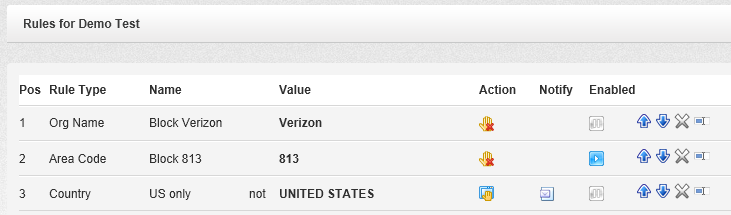
Now let's click on the Rules button. After you click on it, you will see the existing package rules:


Here you can see that this package already has 2 rules under positions 1 and 2.

Within the list, you can turn rules on and off, rearrange them according to their priorities, edit, or delete them.

Let's add a new rule that would limit the package accessibility to US-only visitors.
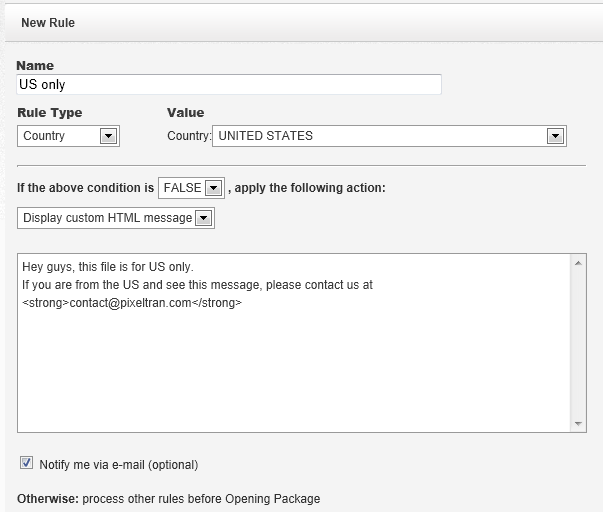
We type the rule name, select Country for the rule type, then select the United States from the list of countries, as shown below. To complete the rule, we need to choose False to disallow all countries other than the US, and for the sake of the example, let's pick the Display HTML item from the list of actions.

Optionally, we can choose to receive an email message when the rule stops a visitor.


Once you save it, you will see the new rule appear in the list:


From now on, when a visitor from another country attempts to open the package link, they will be presented with the following screen:


Once this rule triggers, we will receive an email message telling us about the event.

Instead of displaying an HTML message, you can redirect the visitor to a different file package, suitable for their country, just by selecting another action. Or you can redirect the visitor to your website page where you explain the file download policies for foreign visitors.

Same for computer platforms. If you have different file packages for Apple and PC, we can redirect the visitor to the correct file download form depending on their machine type.


Here is another real life example when the package rules may be useful.

Let's say you are an insurance agent sending a document to your commercial line client. You know their company name. Let's say you underwrite Google, and you only want Google employees to be able to download the document.

In this case, choose the "Org Name" for the rule type, then type Google in the value field, and set the appropriate action. After that, no one outside the Google campus, or rather, no one outside Google network should be able to download the documents via the package link. Even if you post that link on Facebook.

Of course, there are exclusions. There are situations when a Google employee may be working from home, therefore their computer will not appear as coming from Google network. In this case, the rule will stop them, and they won't get your file.

On the other hand, you should be aware that no network is absolutely secure. There is software as well as hardware that can spoof a computer IP address. In this case, the perpetrator may get around the rules to get access to the package by using such software or hardware. To prevent unauthorized access, you may decide to add more rules, or better protect the package with a password. E-mail the package password to the intended recipient in a separate message, or better read it over the phone to them.

There are other situations when package rules may not work as intended. Some people when travel may connect to the internet via a cell phone, in that case the organization name will be AT&T, Sprint, or T-Mobile, regardless of the state they are in.

Others may be using computers configured to use proxy internet providers. An example of one such provider is America Online. They dynamically change IP addresses in a way that they may appear coming from different parts of country, or even another part of the world. You should be aware about this as well. If you know where your main customers are coming from, you should be able to set the rules accordingly.

Our system of rules is not an absolute tool for securing your data. It's simple and efficient, and lots of our customers use it on a daily basis. For others, it might be a good idea to utilize multiple protection layers. For the best results, it might be a good idea to first run a few reports to see what the download traffic looks like, before setting up the rules. Just be aware that no information is absolutely private or secure, once it has been published.