Showing posts with label email large files. Show all posts

Friday, January 11, 2013

How to Enable Dropbox Notifications

June 2020 Update: the pictures on this article are outdated as the Service has been completely redesigned in 2020.

Our customers sometime ask us how to make EmailLargeFile notify them when someone uploads a new file to their dropbox.

Here is how you can do it.

First, log in to your account.

Next, in the list of Packages, locate the Dropbox package. If you don't see it, you may need to activate or create it. The activation process is described in this article.


When you see the Dropbox in the list, click on it to edit. You will be taken to the package edit form.
On that form, click on the Rules button, as displayed on the screenshot below. This is similar to adjusting package rules, however the Dropbox package only supports one rule, which is 'new upload'.


Once you see the Package rules window, type the rule description, and click the Add Rule button:


Note that some of the options are grayed out. That means their value cannot be changed in that mode.
After you see the new rule in the list, you are done!


At this point, if the rule is enabled, the notification email message will be sent to you each time someone uploads a batch of files to your dropbox.

You can turn off/on the dropbox notifications at any time using the Pause icon in the Rules list.

Sunday, September 30, 2012

EmailLargeFile customers get storage increase

June 2020 Update: this article is outdated as the Service has been completely redesigned in 2020.

EmailLargeFile.net is primarily a file transfer solution. We provide intelligent file delivery service and offer our customers ample storage for their files and data.

Why storage is important? Before a file can be submitted via Emaillargefile file transfer, it has to be uploaded and stored on our servers. We keep our customers' files until they delete them, unlike some of our competitors such as Mailbigfile which costs twice as much per month, but keeps files only for 28 days. Even so, many of our customers don't use much of the file storage space offered to them. For example, most of our professional accounts don't normally store 25 GB of files within their allocated space.

We carefully review the list of available options on a regular basis, but there are some of the upgrades that we are glad to offer to our clients right away. Today, we are increasing the available storage for all our new and existing Personal accounts from 5Gb to 7Gb. This should help our clients store and transfer more data, and will make us even more competitive on the market.

To review and compare the list of available options, see the subscription plans comparison chart here.


Monday, May 21, 2012

EmailLargeFile vs "free" file sharing services

There are a few decent free, or nearly-free, file sharing services available these days. One of the most known is SkyDrive, provided by Microsoft.

This product is quite convenient to use, however it provides little control on who can access your files. After downloading the software you essentially open the door from your computer to the outside world.
Once you install the SkyDrive on your laptop, you will never know where your files are going once the link has been published. And you will never know how safe your peer connection is or whether the transmission is encrypted.

Same is true for Google file sharing service, which is called Google Drive (duh). This time, however, your file content may also get parsed for keywords and searched via the Google docs service.

What is great for friends and family, may not be always good for business files or documents.

If you are concerned about the security of your data and need a complete control over file distribution, we suggest you to take a look at our managed file sharing service.
Emaillargefile.Net is here to help.

First, it does not download or install additional software to your machine. This means, there are no open doors.

Second, with its precise email submission system, it can send messages to the exact people you select from your address book, and you always know if the message has been sent and if they received the files.

When people download the file, you either get a text message on your cell phone or an email message on you computer, this is like a digital return receipt, if you will. You can always turn off notifications or change the notification method.

Next, you can see and download the detailed reports about who, when, and where opened your packages and downloaded your files.

Even more, all file transfers only go via the encrypted HTTPS protocol, and along with two (or more if needed) password protection layers, this makes EmailLargeFile.Net compliant with HIPAA and Sarbanes-Oxley.

And last, but not least, you can make your file only available to a certain geographic or organizational area. We track geolocation information on each click and download, so you can set custom rules on files and packages if you want them to be accessible by a very limited or a very broad area of recipients.

Check out and compare all the features here. And yes, we are currently running pricing specials, so sign up while they are still available.

Friday, April 27, 2012

The quickest and easiest way to send large files

June 2020 Update: some pictures in this article are outdated as the Service has been completely redesigned in 2020.

If you need to transfer a large file to someone, don't send it as an e-mail attachment. EmailLargeFile.Net can help you transfer files as big as 2GB, all via browser.

You can send a file in 3 steps.

1. Click 'New Package'.
Type the package Title and an optional description.

Package is what combines multiple files into one envelope when you send it. This is what helps your recipients figure out what the file is about, and allows them to download multiple files in one ZIP.


2. Click Next, then Select and upload files.

You can select and upload multiple files in one batch. The applet will tell you their file sizes and will show you the upload progress.


3. Next, click the Package Link shortcut:


4. The file link is ready.


You may copy the link to a new e-mail message, or click 'Create message' to launch e-mail client:


At this point you are done.


When your recipient clicks the link to download the files, they will see a file download page similar to this:


You need to register before you can use EmailLargeFile.Net. Registration is quick and easy:
https://emaillargefile.net/signup

Monday, December 5, 2011

How to Set Up EmailLargeFile Dropbox

Hi,
in one of my earlier posts I explained how to use the EmailLargeFile dropbox. Let's see how you can set it up and configure.

First, login to EmailLargeFile account. Go to Account Settings.

After you click the Enable dropbox option, a frame with the configuration settings will unfold.


Enter Title and Description. That's what the users will see.
It's a good idea to use your name in the Dropbox title, and to put an extended message for users in the Description. They have to know that they won't be allowed to send files to you until you add them to your Emaillargefile address book.

Html is allowed in the Description field.

This is how your users will see the dropbox:


Now, the number of files per e-mail is essentially a restriction imposed on how many files a user can upload to you. Keeping it at 5 might be a good idea.


Now, it's good to know that the following limitations are true for dropboxes:
- dropbox cannot be bigger than 8Gb for Professional accounts or any accounts under 24Gb of total space allotment,
- it cannot be bigger than 2Gb for Personal accounts or any accounts with total space allotment of 8Gb or less (if enabled).


Monday, November 14, 2011

How to Transfer Large Files via Internet

June 2020 Update: the pictures on this article are outdated as the Service has been completely redesigned in 2020.

Hi All!
You are probably already familiar with our free EmailLargeFile.com service. It's been around for years. Despite being simple and fast, it has its limitations. The most important one is that it can't transfer multiple files at once.

We haven't had an alternative until recently. Last month, we rolled out the brand new EmailLargeFile.NET service. There is a high chance that you haven't seen it yet, so... let me explain how to transfer large files with EmailLargeFile.Net.

First, log in.


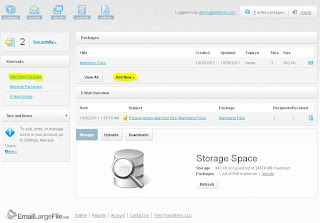
Files uploaded to EmailLargeFile.net service are combined into one or more file packages, so you have to create a package. First, click Add Package:


Give it some description, then click Next:
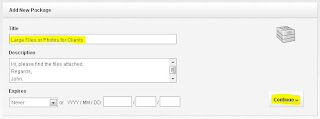


Now you may upload large files or photos. They will be part of the package. Don't worry about the file size, our file upload app will tell you if you are short on space. Also, don't worry about putting files in wrong packages, with our file manager you can easily copy files, or move them between packages without using extra storage space.
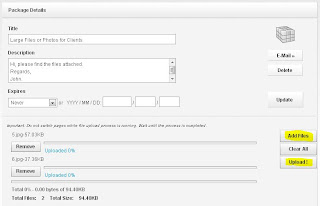


After you clicked Upload, the app will transfer copies of selected files to our servers.
If you don't want to e-mail files to anyone, then you are Done!


If you need to e-mail your large file package to someone, read on.
Click E-Mail button to start composing a message:
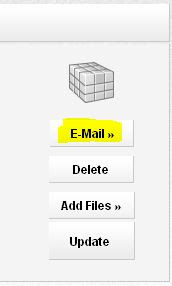
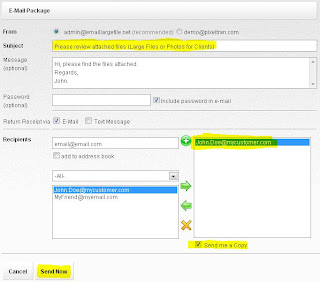


In the email compose window, you can add new e-mail addresses to the existing address books, such as Personal or Business address books. Hint: you can edit your recipients and address books from the Account screen.
After you've done adding or picking recipients, click Send Now button to let us send e-mails for you. Depending on how many addresses you entered, it may take a few minutes. You are however, done, and can observe the process from the Reports.

Your e-mail recipients will receive messages with individual file package links, such as this:
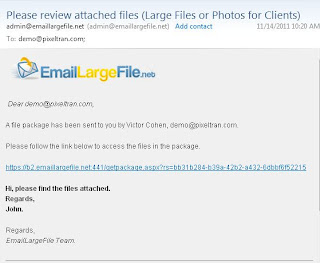


The link will take them to a page where they can view or download the files:
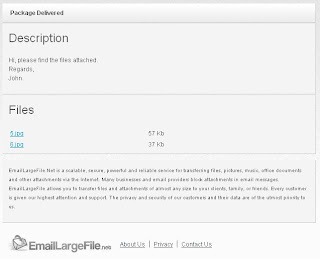


Needless to say, if you entered a Password for the e-mail, then your recipients will only be able to see the files if they entered the correct password.

Along with the SSL encryption, this feature makes EmailLargeFile.Net service one of the most secure file delivery services on the Web. Password access and encrypted communication makes it suitable for delivering medical, legal, insurance, and other important documents.

Now, back to our file management console.

When you recipients click on the e-mail link, you will see when and where they do it.
Sometimes you can even tell if the user opened the message from his office, hotel, or airport while traveling. You can tell this by looking at the Organization name in the reports.
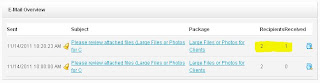
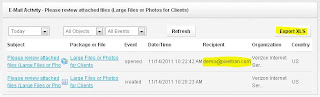


Seeing the geographical location of file activities makes EmailLargeFile service stand above its market competition. EmailLargeFile.Net service also provides you with detailed Excel compatible reports containing all data you need to know - who received or not received your files. We also tell you when and where they opened your files. If you don't see some data you need, tell us and we will create or modify the report for you. Who else would do that for you?

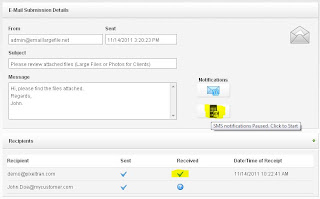
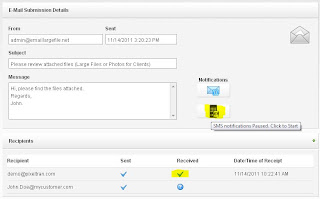
As a nice option, we can send you an e-mail or an SMS (text message) notification when your file package is opened. Just enter your cell phone number and provider, then turn on the notifications in the e-mail message options.