Monday, September 5, 2022

Why small businesses protect customer data better than large corporations.

Dear Friends!

It's been awhile since we posted anything here. We've been busy writing code, expanding our service and helping out customers. Thank you all who messaged us in Facebook and via E-mail asking how we weathered the Covid time. We not only survived, we in fact expanded our Cloud footprint substantially - both programmatically and geographically. And the best part is that we did not leave sunny Florida. We expanded into other areas digitally with the help of the Amazon cloud platforms and services.

Today let us chat a bit about data privacy and security. We will stay short and down to the subject, so please don't scroll down too far :)

We hear a lot about big companies who fail in protecting their customers' data. We read news too. Have you ever thought why? We think we know what may cause the problem. No, it's not because of employees' skills or experience. Most people who work there are like you - they have bright minds and great skills. In fact, the problem is not in the people at all. The problem is in the size of those companies. The lack of data security and protection is caused by the classic pitfalls of big corporations: overstaffing and conflict of responsibilities.

We work with big companies for years and we know the IT specifics inside and out. The idea of building wide organizational units expecting them to remain secure is erroneous and fragile. How can you trust so many eyes to keep your data secure? We've seen it many times: you type your SSN and other personal information, click Submit, then it gets sent across dozens if not hundreds of very diverse teams of people who see and process the data before storing it in a digital dumpster. Many of those people are not even company employees, they are contractors. Who knows where else your SSN went to? How many times has your data been copied? Where is it now? India? China?

Small businesses like ours are naturally devoid of those pitfalls. They employ smaller workforce, and their workflows are more tight and secure. Small businesses are and will always be more efficient by automating internal processes and workflows instead of hiring more people. The software they use is better taylored to solve very specific tasks. Many of the workflows don't need people to look at the data. The data is handled by programmatic functions and microservices. It has a compact footprint and the storage is efficient.

Small business owners have much better knowledge of their teams. The management and employees are better incentivized to preserve and expand the customer base. Small businesses are more dynamic in responding to market shifts and they have better leverage of the resources they have. The customer data is their most precious and valuable resource. It's the core of their business. Guess where your data will be more valued and therefore more protected?

In the 11 years of our EmailLargeFile service existence we have never sold or gave out any of our customers data. We never fulfilled any request to sell even a single e-mail address or a message. We received numerous requests to insert sniffing and marketing code into our website or messages, but we ignored all of them. We received dozens of requests to 'get paid to use 3rd party code' in our mobile app, but we never responded to that scam. During our datacenter times there was only 1 support engineer who had access to the data, and only during support sessions. Currently, your data is even more protected as it stays encrypted at AWS with zero public access. Even Amazon employees can't read the encrypted data.

Our infrastructure is even more fool- and hurricane-proof now. Since our full migration to AWS in 2019, we no longer have any computing hardware to maintain. We no longer need to juggle the backup disks and buy new hard drives every 2 years. There are scheduled tasks that run at AWS that do backups of all the databases and files and replicate the backups into another geographic region within the continental US. Your data is safer now at AWS. It can withstand a nuclear attack, let alone a hurricane or an earthquake.

Thursday, December 1, 2016

How to get notified via text message or SMS

June 2020 Update: some pictures in this article are outdated as the Service has been completely redesigned in 2020.

How to enable notifications via text message or SMS.
Besides e-mail, there is another and somewhat quicker way to get notified when a file package is successfully delivered and opened. If you have a cell phone (who don’t?), you can choose to get notified via a text message when your file package is opened by the recipient.
Step 1. Add cell phone number.

First, you need to add your cell phone number to your Account information. If you already did that, skip to the Step 2.
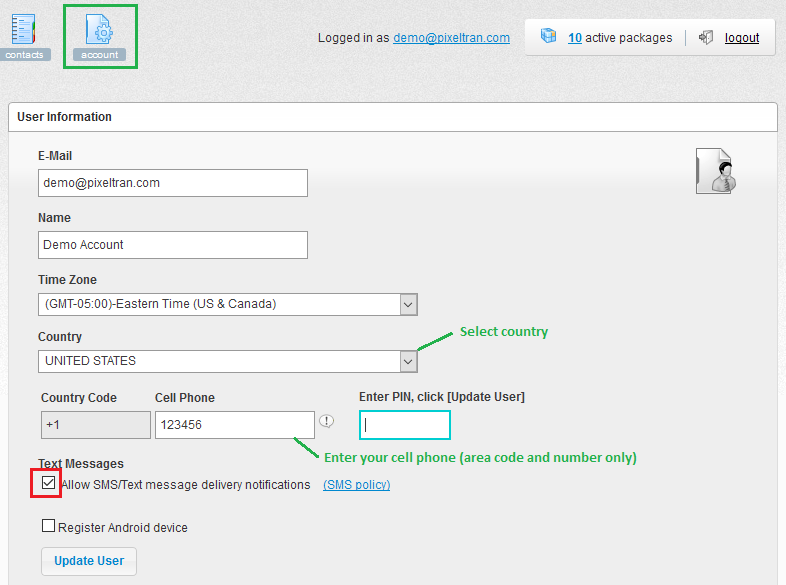
To get to the Account info, log in to EmailLargeFile.net, then click on the Account icon up top:

Scroll down to the User Information section.
Pick the Country, then enter the cell phone number.

Click the [Update User] to save it before moving to the next step.
Step 2. Confirm your cell phone via PIN.

Verify that the Country code is correct (+1) and your cell phone is correct, then click the [x]Allow SMS/Text checkbox.

Important: you may get charged for receiving text messages by your mobile service provider. If unsure, contact your mobile service provider. Make sure you are fully aware of your cell phone plan fees and options.

Once you clicked the checkbox, wait for a few seconds until you receive a text message on your phone AND the Enter PIN prompt shows up on the screen:

If you didn’t receive the PIN message, check if your cell phone number is entered correctly. If it’s entered correctly, but you still don’t get the verification message, let us know!

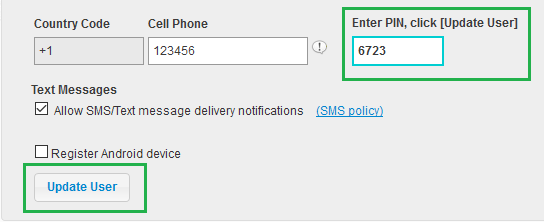
Once you received the text message with the PIN, enter it in the box (your pin will likely be different):

Click the [Update User] button to accept the changes and confirm the PIN.
Step 3. Receive delivery confirmation via text message.

Now you are ready to receive text message notifications about package delivery.
When composing a new e-mail submission, check the [x] Text Message box next to the Return receipt. This will turn on SMS notifications when the submission is received and the package is opened.

You can always turn off the SMS notifications for the particular Submission via the submission details screen.
For that, click on the particular Submission under the Package on the tree view, then click on the text notifications button on the right to toggle.


Tip: via the Submission Details, you can also turn On or Off text message notifications for earlier submissions.
The text message you receive when the package is first opened would look like:

(Of course, the package name will be different from the pictured.)

Same as with the e-mail notifications, the text message is only sent to you once per recipient, and only when the package is first opened. Subsequent opens or downloads will not trigger notifications, but you will be able to see the package activity via the Reports page.

Sunday, December 29, 2013

Email Large File Android app updated

If you use our free EmailLargeFile app for Android (former File Transfer Free), you may have noticed that it had been recently updated. If you haven't updated it yet, please do.

The new version works on Jelly Bean and KitKat much better. These would be 4.3 and 4.4 versions of Android OS, respectively.

As usual, here is some story behind this update.

About 3-4 months ago, some of our users started sending us support requests to resolve issues with our app after they updated their Android phones with the new OS. Interestingly, the app didn't have issues with many devices, even those with 4.3 or later.

We started investigating the problem. What was happening is that the 4.3.x added a new permission to access files on the SD card, while our app originally designed for 2.6 did not acknowledge. Of course, once we realized that the problem was with the app permission, we immediately modified the Manifest file. That however didn't immediately resolve the problem. After some more digging we figured out that the new bump on the road was in fact caused by the new security model of 4.3. Here is some info on that from CNET news.

By the time we fixed our code, and our new digitally signed package has been approved and published on the Google Play Store, Google decided to take away that security feature from their Android OS, calling it Beta version.

So, our code seemed not need any fix at all, it would just work the same way on 4.4.x as it worked before 4.3. Thankfully, this Google's switcheroo let us fix a few bugs in our code, including the one with Address Book, when the address book would open once and sometimes crash on one of the next open attempts. (Our app opens the address book to let the user pick an email address to send files to, and for that purpose only).

We also added the option for the user to pick a From address from any of the accounts set up on his/her device. This however happens only once during the app install, and is not available again via Options. To pick another From address, you may need to uninstall then reinstall the app.


Our Email Large File Android app allows you to send full resolution photos, videos, or other files from your Android device via email bypassing e-mail restrictions on file size. It's totally free at Google Play Store


For our iPhone aficionados, there is an Email Large File app for iOS too! Check out iTunes app store.

Thursday, October 10, 2013

CryptWit published by Download.com

Great news!
Our free email encryption product CryptWit has been approved and published at Download.com.

Visit Download.com to download and rate it!

Get free CryptWit from CNET Download.com!

Saturday, August 10, 2013

How to send encrypted email via Outlook.

Another secure email service is now available for free.

This is for all of us who use Outlook to send and receive email messages. The software is called CryptWit for Outlook and it comes as a free add-in with perpetual license, which you can use for all your needs.

The great thing is that it does not need any special software on the other end, which means your recipients, even if they use Gmail or Hotmail, can still decrypt and read your secure message.

Here is how to send an encrypted email message in 40 seconds:


Sunday, July 21, 2013

How to Send Files with EmailLargeFile.net - Video Tutorial

June 2020 Update: this article is outdated as the Service has been completely redesigned in 2020.


Tuesday, March 26, 2013

How to Import Address Book Contacts From File

June 2020 Update: some pictures in this article are outdated as the Service has been completely redesigned in 2020.

EmailLargeFile.net file transfer service is continually developed and updated with new features. Recently, we have added the ability to bulk-import address book contacts from a file.

Here is how you can use it.

First, you need to have the list of contacts in a comma-separated (CSV) or a tab-separated (TXT) file. Make sure the first line of text in the file contains email,name. Lowercase or uppercase, doesn't matter. Those two words can be separated by a comma (,) or a tab character. No spaces. Double quotes allowed.
The first two words help us to determine the format of the rest of the file.

The file name (business, or personal, or general) helps us determine which of the address books to update. File extension is optional. On a Windows machine it will likely be .txt or .csv.

We assume the rest of the file is only emails and names. One record per line. The column separator character must be the same as in the header. Example of a correct CSV file:


Once you have the file ready, you can import it.
For that:
  • log in to Emaillargefile.net via https://emaillargefile.net ,
  • click on Contacts on top of the page. You will see the Manage Contacts and Recipients page:


Click the Import tab as highlighted below, then browse to the file (i.e: business.csv or business.txt).


No need to click the address book name on top of the page. Just make sure you pick the correct file: business for business contacts, personal for personal contacts, general for "all".  Then click Submit.

On successful import, you will see the following message:


The imported email address records will look like this:


How to Prepare CSV File


If you don't have the file ready, here is how you can make it.
A well-formed recipients list is a text file. You can type it in the Notepad, or you can export the list from Excel. Here is how you can export the data from Excel.

The contacts should be in 2 columns. The first column contains email address of each person or contact, the second column stores the corresponding names:


To export data, click on the Office button, then Save As-> Other formats.


Give file a name - either Personal, or Business, or General. Pick either Tab-separated TXT file, or a Comma-separated CSV file format, then click Save:


If you preview the file in Notepad, the contents will look like this:


Close both Excel and Notepad, and you are ready to import the file.


How to Format Email Addresses


Let's say, you named the file correctly, made it tab- or comma separated, correctly spelled the header, left no spaces between columns, but the import procedure still shows zero records updated:


Usually, the zero records message would mean that the imported email addresses already exist in the database. The records may have been uploaded or manually entered earlier

In other cases, that could mean the email addresses are blank or have been incorrectly formatted.

Here are some examples of the lists (including header). Notice, that the format of each record must match the header formatting. The first column of reach record is always an email, the second column is name (or empty). Spaces or special characters other than double quotes aren't allowed in email address:

Correct Incorrect
Email,Name
John_Silver@email.com,John Silver
Mary_Poppins@email.com,
,email,name
,John_Silver@email.com,John Silver
email,Name
"john@email.com","john"
Name,email
John Silver,john@email.com
Email name
mary@email.com Mary Poppins
Email name
mary@email.com,Mary Poppins
email,name
"fuzzylogic@domain.com",John Silver
email,name
<fuzzylogic@email.com>,John Silver


Limitations

  • Maximum imported file size is 1Mb,
  • Maximum number of imported addresses is limited by a plan you are subscribed to.


Tips and Hints


If you delete a recipient from one of your address books, then import the same email address from a file, the recipient will be restored in the address book, rather than re-created as new.

Duplicate emails are omitted. Records with empty email addresses are skipped.

Existing recipient with matching email address but a different name in the imported file, will not be renamed in the address book. (This is the current behaviour of the import procedure, which we may review and change in the future.)

For Professional and other multi-user accounts, address books of different users under the same account are not merged or shared between users.

Recipients with the same email address or name, if imported into different address books (business, then personal) will not be merged into 1 record, they will stay as multiple records, one per each address book. Exception: General (all) list.


Thursday, March 14, 2013

Storage Space Increase for All Customers

After careful consideration, we at EmailLargeFile.net decided to increase available storage space for file sharing needs for all our customers.

All Personal accounts now get 20GB of maximum storage space.
All Professional accounts get 40GB of storage.

This space increase affects all new and existing subscribers.

Existing subscribers: you can see the available storage space once you log in to your account:


If you need even more space, or need to bump other limits, contact us. It is more than likely we can adjust the features available to your plan for a small fee.

Of course, if you need a lot of storage space, or custom file management solution, or you want to store your files or documents on an existing server at your office, we can set up that solution for you as well.

Friday, January 11, 2013

How to Enable Dropbox Notifications

June 2020 Update: the pictures on this article are outdated as the Service has been completely redesigned in 2020.

Our customers sometime ask us how to make EmailLargeFile notify them when someone uploads a new file to their dropbox.

Here is how you can do it.

First, log in to your account.

Next, in the list of Packages, locate the Dropbox package. If you don't see it, you may need to activate or create it. The activation process is described in this article.


When you see the Dropbox in the list, click on it to edit. You will be taken to the package edit form.
On that form, click on the Rules button, as displayed on the screenshot below. This is similar to adjusting package rules, however the Dropbox package only supports one rule, which is 'new upload'.


Once you see the Package rules window, type the rule description, and click the Add Rule button:


Note that some of the options are grayed out. That means their value cannot be changed in that mode.
After you see the new rule in the list, you are done!


At this point, if the rule is enabled, the notification email message will be sent to you each time someone uploads a batch of files to your dropbox.

You can turn off/on the dropbox notifications at any time using the Pause icon in the Rules list.

Sunday, September 30, 2012

EmailLargeFile customers get storage increase

June 2020 Update: this article is outdated as the Service has been completely redesigned in 2020.

EmailLargeFile.net is primarily a file transfer solution. We provide intelligent file delivery service and offer our customers ample storage for their files and data.

Why storage is important? Before a file can be submitted via Emaillargefile file transfer, it has to be uploaded and stored on our servers. We keep our customers' files until they delete them, unlike some of our competitors such as Mailbigfile which costs twice as much per month, but keeps files only for 28 days. Even so, many of our customers don't use much of the file storage space offered to them. For example, most of our professional accounts don't normally store 25 GB of files within their allocated space.

We carefully review the list of available options on a regular basis, but there are some of the upgrades that we are glad to offer to our clients right away. Today, we are increasing the available storage for all our new and existing Personal accounts from 5Gb to 7Gb. This should help our clients store and transfer more data, and will make us even more competitive on the market.

To review and compare the list of available options, see the subscription plans comparison chart here.


Tuesday, September 11, 2012

Alternative DNS hosting and Godaddy downtime

We, as many other businesses, are trying to keep our costs down to stay competitive on the market. We understand the importance of data storage reliability and data consistency. That's why we don't outsource server support, we maintain our datacenter and servers by our own staff and using our own resources.

Unfortunately, our attempt to cut costs on letting Godaddy take responsibility of our DNS (domain naming system) did not work as well.

As many of you probably read on CNN and other news web sites yesterday, Godaddy has been brought down by a massive denial of service attack. While we can certainly feel for Godaddy and their network engineers that had a hard day yesterday, we cannot afford being taken down during the busiest work hours.

We do consider our service unique and special. Understanding that we are not alone in the company of millions other web sites, does not make us feel comfortable at all. Our dedication goes to our customers at any cost, and we will not sit quietly waiting for another downfall of Godaddy or any other third party provider for that matter.

We are currently researching how Godaddy managed or rather didn't manage to hold the attack with their huge infrastructure and astronomical budgets. Of course it is almost impossible to tell exactly what happened, and it's pretty clear that Godaddy will never disclose any real details on that. Our preliminary conclusion is that they did not have enough redundancy at the network hardware level. Let their engineers do the work and rebuild what was not done properly in the first place.

Our next step is to research how we can prevent such a problem in the future. The answer seems to be simple. Stay independent, listen, learn, and be proactive. We are currently working on moving away the DNS and some of our domains to a different provider.


Update: Godaddy confirmed that there was no attack, there was an internal network problem. Most if not all owners of sites who were hosting with Godaddy at the time have received some compensation in the form of a month credit. Domain owners whose DNS was managed by Godaddy and which was broken for half a day did not receive anything.


Monday, July 23, 2012

How to personalize emails with custom logo and branding

June 2020 Update: the pictures on this article are outdated as the Service has been completely redesigned in 2020.

Here is how to customize email messages sent by our service with your company logo and a custom footer in HTML format.

First, login to Emaillargefile.Net. Next, open your Account settings page.

Scroll down until you see the Custom Branding option:

Click the checkbox to start personalizing your account.


For custom branding, you can upload a custom PNG or JPG or GIF logo file. You can also add a custom text to the message footer which will also appear on file download page and the drop box page.

The footer text supports HTML notation, so you can include remote site links and other references.
Click Update Branding when you are done. You will see the logo preview and an option to remove the uploaded image.

You don't have to always upload a logo and change the footer text at the same time. Updating one option is perfectly fine.

If you disable custom branding by un-checking the "Enable Branding" box, your saved personalization data will not be shown to your recipients anymore, but it will not be deleted from our database. You can always re-enable the branding again without re-uploading your logo.
To force delete the logo and the footer data, you must empty the footer text and check the Clear image box.

Now, provided that you have uploaded the logo and changed the footer text, here is how they will look in each of the email message sent to your recipients:


You may notice the custom logo in the upper part of the email message, and the footer text appears right below the horizontal divider.

The package download page as well as the dropbox page will also display your custom branding:


I specifically highlighted the custom branding components on this screenshot with a yellow marker for better visibility. The actual screen will not have the yellow marker lines.

Currently, ALL subscription customers (including Personal plan) get the branding at no additional charge. They can now personalize their email messages with custom logos and custom text including HTML tags.


Monday, May 21, 2012

EmailLargeFile vs "free" file sharing services

There are a few decent free, or nearly-free, file sharing services available these days. One of the most known is SkyDrive, provided by Microsoft.

This product is quite convenient to use, however it provides little control on who can access your files. After downloading the software you essentially open the door from your computer to the outside world.
Once you install the SkyDrive on your laptop, you will never know where your files are going once the link has been published. And you will never know how safe your peer connection is or whether the transmission is encrypted.

Same is true for Google file sharing service, which is called Google Drive (duh). This time, however, your file content may also get parsed for keywords and searched via the Google docs service.

What is great for friends and family, may not be always good for business files or documents.

If you are concerned about the security of your data and need a complete control over file distribution, we suggest you to take a look at our managed file sharing service.
Emaillargefile.Net is here to help.

First, it does not download or install additional software to your machine. This means, there are no open doors.

Second, with its precise email submission system, it can send messages to the exact people you select from your address book, and you always know if the message has been sent and if they received the files.

When people download the file, you either get a text message on your cell phone or an email message on you computer, this is like a digital return receipt, if you will. You can always turn off notifications or change the notification method.

Next, you can see and download the detailed reports about who, when, and where opened your packages and downloaded your files.

Even more, all file transfers only go via the encrypted HTTPS protocol, and along with two (or more if needed) password protection layers, this makes EmailLargeFile.Net compliant with HIPAA and Sarbanes-Oxley.

And last, but not least, you can make your file only available to a certain geographic or organizational area. We track geolocation information on each click and download, so you can set custom rules on files and packages if you want them to be accessible by a very limited or a very broad area of recipients.

Check out and compare all the features here. And yes, we are currently running pricing specials, so sign up while they are still available.

Friday, April 27, 2012

The quickest and easiest way to send large files

June 2020 Update: some pictures in this article are outdated as the Service has been completely redesigned in 2020.

If you need to transfer a large file to someone, don't send it as an e-mail attachment. EmailLargeFile.Net can help you transfer files as big as 2GB, all via browser.

You can send a file in 3 steps.

1. Click 'New Package'.
Type the package Title and an optional description.

Package is what combines multiple files into one envelope when you send it. This is what helps your recipients figure out what the file is about, and allows them to download multiple files in one ZIP.


2. Click Next, then Select and upload files.

You can select and upload multiple files in one batch. The applet will tell you their file sizes and will show you the upload progress.


3. Next, click the Package Link shortcut:


4. The file link is ready.


You may copy the link to a new e-mail message, or click 'Create message' to launch e-mail client:


At this point you are done.


When your recipient clicks the link to download the files, they will see a file download page similar to this:


You need to register before you can use EmailLargeFile.Net. Registration is quick and easy:
https://emaillargefile.net/signup

Sunday, April 8, 2012

All major credit cards now accepted

Hi All,

If you were thinking about signing up for our service, but didn't have or didn't like Paypal, we have some good news!

We have implemented and deployed the credit card payment software interface on our web site. We can now accept all major credit cards: Amex, Discover, Mastercard, and Visa.


Paying with a credit card is much more convenient for many. It is especially convenient for our business customers. They now don't have to pay each month, the billing provider will do that for them.

Same as with Paypal, there is no long-term contract, so any customer can cancel their account at any time. As with Paypal, the billing cycle for credit card subscribers is one month.

We now have a limited number of coupons for Personal and Professional subscribers. Currently, they are for new subscribers only. If you want to start with the Personal plan for $1.49 and Professional for $4.49, get back to us via our contact page for a coupon code.

Wednesday, March 28, 2012

More control: Package Access Rules

Speaking about delivering dishes to tables... Do you want to share a dish between many tables, or you want only one particular connoisseur to have it?

In the world of computers, that would be called link sharing. And we have a great tool to curb link sharing. It's called Package Rules. You can set machine type, country, organization, or use other criteria to filter out undesired viewers.

Let's say you only want your US customers to be able to see an AutoCAD drawing, because it contains the data not allowed to be exported to foreign countries. The problem with other file delivery services that they can't stop file links from being forwarded. Once a file link is out on the Internet, it's completely public. Anyone can download the files. With our service you have a choice.

From the packages list, open a package to see package details. Our package is called Demo Test, and we set a few rules for it earlier. That's what you may see on the screenshots below.

Package details:


Now let's click on the Rules button. After you click on it, you will see the existing package rules:


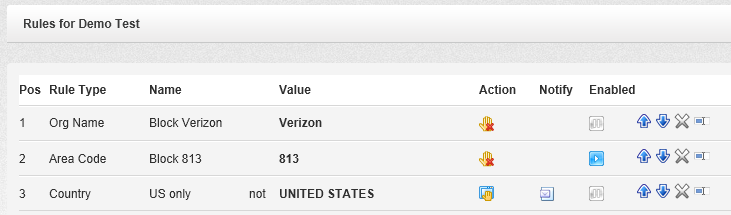
Here you can see that this package already has 2 rules under positions 1 and 2.

Within the list, you can turn rules on and off, rearrange them according to their priorities, edit, or delete them.

Let's add a new rule that would limit the package accessibility to US-only visitors.
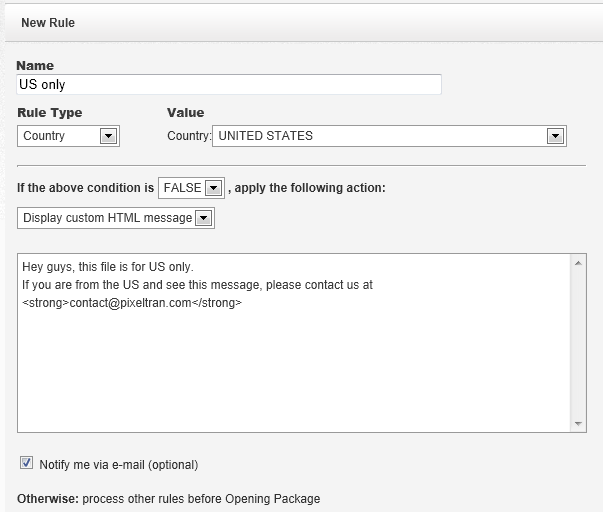
We type the rule name, select Country for the rule type, then select the United States from the list of countries, as shown below. To complete the rule, we need to choose False to disallow all countries other than the US, and for the sake of the example, let's pick the Display HTML item from the list of actions.

Optionally, we can choose to receive an email message when the rule stops a visitor.


Once you save it, you will see the new rule appear in the list:


From now on, when a visitor from another country attempts to open the package link, they will be presented with the following screen:


Once this rule triggers, we will receive an email message telling us about the event.

Instead of displaying an HTML message, you can redirect the visitor to a different file package, suitable for their country, just by selecting another action. Or you can redirect the visitor to your website page where you explain the file download policies for foreign visitors.

Same for computer platforms. If you have different file packages for Apple and PC, we can redirect the visitor to the correct file download form depending on their machine type.


Here is another real life example when the package rules may be useful.

Let's say you are an insurance agent sending a document to your commercial line client. You know their company name. Let's say you underwrite Google, and you only want Google employees to be able to download the document.

In this case, choose the "Org Name" for the rule type, then type Google in the value field, and set the appropriate action. After that, no one outside the Google campus, or rather, no one outside Google network should be able to download the documents via the package link. Even if you post that link on Facebook.

Of course, there are exclusions. There are situations when a Google employee may be working from home, therefore their computer will not appear as coming from Google network. In this case, the rule will stop them, and they won't get your file.

On the other hand, you should be aware that no network is absolutely secure. There is software as well as hardware that can spoof a computer IP address. In this case, the perpetrator may get around the rules to get access to the package by using such software or hardware. To prevent unauthorized access, you may decide to add more rules, or better protect the package with a password. E-mail the package password to the intended recipient in a separate message, or better read it over the phone to them.

There are other situations when package rules may not work as intended. Some people when travel may connect to the internet via a cell phone, in that case the organization name will be AT&T, Sprint, or T-Mobile, regardless of the state they are in.

Others may be using computers configured to use proxy internet providers. An example of one such provider is America Online. They dynamically change IP addresses in a way that they may appear coming from different parts of country, or even another part of the world. You should be aware about this as well. If you know where your main customers are coming from, you should be able to set the rules accordingly.

Our system of rules is not an absolute tool for securing your data. It's simple and efficient, and lots of our customers use it on a daily basis. For others, it might be a good idea to utilize multiple protection layers. For the best results, it might be a good idea to first run a few reports to see what the download traffic looks like, before setting up the rules. Just be aware that no information is absolutely private or secure, once it has been published.


Intelligent File Transfer

You might ask: "what makes EmailLargeFile so special?"

Well, that is the right question.

The short answer can fit in three words: intelligent file transfer.

If you are new to EmailLargeFile, you might not instantly notice the unique details that set us apart. We do have all the main ingredients for successful file transfer: file storage and upload tools, drop box, address books, user management, and more.

But after you upload files and submit your first e-mail, the valuable and important things will gradually unfold. You will notice that each file package you sent brings a flock of events which you can study and review, and most importantly, control.

On one page you can see which of the recipients have opened the file, and who needs an extra reminder. Another look will tell you which file package has suddenly received more downloads.

A quick report will tell which one of your file packages is so popular it's even being forwarded by your recipients to other parts of the world. Another report may give you a clue about the document workflow at your customer's headquarters, such as who opens the document first, where it gets forwarded, and when you can expect a response. Want to export results into Excel? You can do that with one click.

Our system captures as many events as possible, we pre-process and translate them for you when you run reports. The higher the subscription plan you choose, the more data, reports and tools you get. More detailed reports usually mean a better workflow picture. This brings you more flexibility in optimizing the file transfer part of your business.

It's often crucial for a business to know where their files or documents are most needed, so they can be delivered to the correct person at the correct place. We are here to make it happen. You order the dish, we serve it hot and never miss the table.

Our tracking system works globally. We track files all the way to their accurate destination, down to the latitude and longitude, postal and area code. Everyone knows that this sort of information is highly volatile. The geo location may be accurate today, but the next day the computer gets replaced, and the address shifts. We defeated this problem. We make sure the reports you get are the most accurate and reliable for this moment in time. We constantly feed our geolocation databases with new data, the data that associates each computer address in the entire world with its geographic position. That can tell you which country, city, and area code the file has been viewed at. In some cases, we may even tell you the name of a business who owns the computer that has received your data.

That unique combination of file tracking information and tools for its processing is what we call intelligent file transfer.

Wednesday, March 21, 2012

Download All Files as ZIP

June 2020 Update: the pictures on this article are outdated as the Service has been completely redesigned in 2020.

Hi All,
You talk, we listen. We have been resisting implementing this feature for some time, but now after publishing it, we can say Yes, it's quite nice to be able to compress the entire package into a smaller ZIP.

So what exactly does that option give you?

First, it gives convenience of downloading all files in one click. See the screenshot?


This is how it looks. We added an option below the file list which says "Download all files". Once you click on it, a ZIP file is created and your browser will ask you to download or open the file.

Second, the ZIP format helps to compress the package files. So if you download the ZIP, it will actually be a bit smaller than the sum of all parts.

This comes at a price. We are still undecided on using strong compression algorithms. The problem is that the better the compression, the slower the process gets and the more CPU power is needed for it. Instead, our developers decided to shift the balance towards the faster compression. That of course does not make the ZIP files very small and tight. But the purpose of our web site is not to create the smallest archive files. We are constantly looking for better user experience, which means speed and responsiveness for a website like ours.

You might notice that the Download all files option does not show up for all packages. That means that either you opened the package from a mobile device or your package is too large. Some mobile devices can't open ZIP files without special applications, therefore we don't recommend people to download ZIPs to their Androids or iPhones.
If you are coming from a laptop or a desktop computer, then you can use the Download all files as ZIP option with no issues.

We threw in a couple of cool options on top of that.

First, the ZIP file will not contain duplicate files even if the package does have duplicates. If we detect there are the same files in the package, only one of them will make into the ZIP, and a Readme.txt file will be added explaining why certain files have been excluded.
Second, the ZIP file will always include the Description.txt file if the package has a description. Sometimes, the package owner may include meaningful information about the package in the Description field, so we decided to append it to the ZIP in the form of a text file.

Let us know what you think, you know the address: EmailLargeFile.Net/Contact.aspx

Monday, March 5, 2012

Internet Explorer 9 unable to download files via HTTPS

Hi All,
A few people have pointed us to the problem with Internet Explorer 9 when they cannot download activity reports in the Excel format from EmailLargeFile.Net.

The problem is that for certain web sites, specifically, those using SSL/HTTPS, the Microsoft browser blocks file downloads.
This appears to be a known issue with Internet Explorer 9.

To resolve the problem, open IE, then go to Tools\Internet Options, then under the 'Advanced' tab uncheck the box 'Do not save encrypted pages to disk'.


The problem and its resolution have been illustrated by Andy Grogan in this article Cannot Save/Open Attachments when using IE9


We are working on a permanent fix, but meanwhile please use the above workaround (which in fact enhances the security), or use Mozilla Firefox or other browsers.


UPDATE: Apparently, the issue was caused by a wildcard certificate which we purchased from Godaddy and which happen not to be accepted by some browsers, among which is Internet Explorer 9.0. While Microsoft has pushed a certificate update since, we nevertheless decided to give up Godaddy and go with Comodo certificates instead.